
In today’s connected world, sharing files and storing them safely online has become essential for work, projects, and everyday life. Whether you’re a freelancer sending documents to clients, a remote team collaborating across continents, or simply backing up family photos, the right tools make everything smoother and more secure.
This guide walks you through what file sharing and cloud storage really mean, the key features to look for, and the top tools worth considering. You’ll also find practical tips to help you choose and use them effectively—no technical jargon, just clear advice that works for users everywhere.
What Is File Sharing and Cloud Storage?
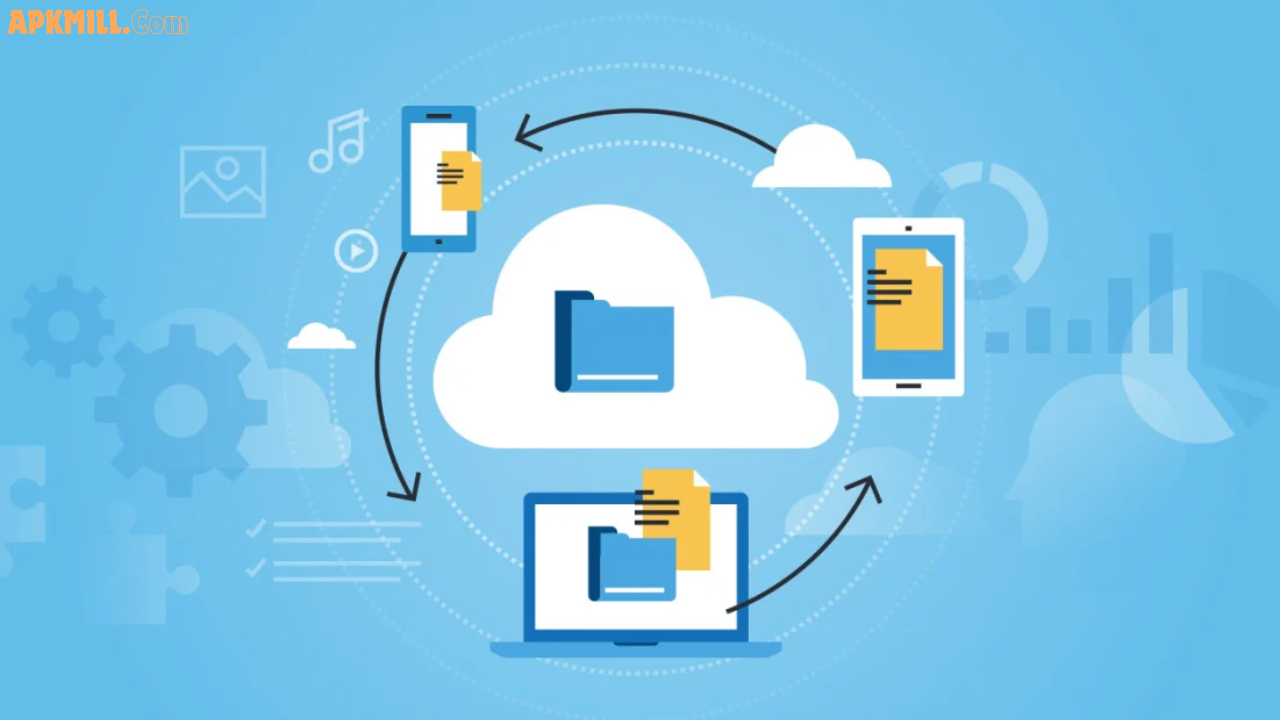
File sharing and cloud storage let you upload files to secure online servers so you can access them from any device with an internet connection. Instead of emailing large attachments or carrying USB drives, you store files in the cloud and share links or folders with others.
Cloud storage acts like a digital filing cabinet that syncs automatically. File sharing adds the ability to control who sees what, add comments, and work together in real time. These tools combine storage, syncing, and collaboration into one simple system.
Key Features and Benefits of File Sharing and Cloud Storage Tools
Modern tools offer much more than basic storage. Here are the most valuable features:
- Automatic syncing — Changes on one device appear instantly on others.
- Secure sharing — Set passwords, expiration dates, or view-only access.
- Real-time collaboration — Multiple people can edit documents at the same time.
- Version history — Go back to earlier file versions if needed.
- Cross-platform access — Works on Windows, Mac, Android, iOS, and web browsers.
- Strong security — Encryption, two-factor authentication, and compliance standards protect your data.
- Mobile apps — Upload, view, and share files on the go.
The biggest benefits? You save time, reduce email clutter, protect against device loss, and enable smooth teamwork no matter where people are located.
Best File Sharing and Cloud Storage Tools
Here are five standout options that consistently rank high for reliability, features, and value. Each suits different needs while remaining easy for beginners.
1. Google Drive
Excellent for teams already using Gmail or Google Workspace. It offers generous free storage and seamless real-time editing with Docs, Sheets, and Slides. Best for: Small businesses, students, and Google users. Standout feature: Simple link sharing with comment access.
2. Microsoft OneDrive
The top choice for Windows and Microsoft 365 users. It integrates perfectly with Word, Excel, and Teams for smooth collaboration. Best for: Office-based teams and professionals who prefer Microsoft tools. Standout feature: Deep integration with familiar desktop apps.
3. Dropbox
A reliable pioneer in file sharing that remains popular for its clean interface and powerful sharing options. Best for: Remote teams and individuals who value simplicity and extra productivity tools. Standout feature: File requests that let others upload without an account.
4. Box
Designed for larger organizations with strong security and compliance needs. Best for: Enterprise teams handling sensitive data. Standout feature: Advanced permissions and hundreds of app integrations.
5. Proton Drive
A privacy-first option with end-to-end encryption and Swiss data protection laws. Best for: Users who prioritize maximum security. Standout feature: Zero-knowledge encryption so even the provider can’t access your files.
These tools all offer free tiers to get started, making them accessible for personal use or testing before upgrading.
How the Top Tools Compare
Choosing the right tool depends on your priorities. Here’s a quick side-by-side look at key factors:
- Storage & Pricing — Google Drive starts with 15 GB free; OneDrive and Dropbox offer smaller free amounts but strong paid plans.
- Collaboration — Google Drive and OneDrive shine for real-time editing; Dropbox and Box excel at controlled sharing.
- Security — Proton Drive leads with full encryption; most others include two-factor authentication and versioning.
- Ease of Use — Dropbox and Google Drive win for beginners; Box offers more advanced controls for bigger teams.
- Best Value — OneDrive often feels like the balanced all-rounder for Microsoft users.
Test the free versions to see which interface and features fit your workflow best.
Pros and Cons of Using Cloud Storage Tools
Pros
- Access files anytime, anywhere.
- Easy collaboration without version confusion.
- Built-in backups protect against lost devices.
- Scalable plans grow with your needs.
Cons
- Internet connection is usually required (though most offer offline access).
- Free plans have storage limits.
- You rely on the provider’s uptime and security practices.
Overall, the advantages far outweigh the drawbacks for most users when you pick a reputable tool.
Practical Tips and Best Practices
- Start small — Use the free plan to test syncing and sharing before committing.
- Organize folders clearly — Use consistent naming so everyone on your team finds files quickly.
- Enable two-factor authentication — Add this extra security layer on every account.
- Share smartly — Use password-protected links and set expiration dates for sensitive files.
- Regularly review access — Remove old shared links you no longer need.
- Combine tools if needed — Many people use Google Drive for collaboration and Proton Drive for private archives.
- Backup important files locally — Cloud storage is convenient, but a local copy adds peace of mind.
These simple habits keep your files organized, secure, and easy to manage no matter how large your team grows.
Frequently Asked Questions
Is cloud storage safe for important files? Yes, when you choose reputable providers that use encryption and two-factor authentication. Always enable extra security features and review sharing settings regularly.
What’s the difference between file sharing and cloud storage? Cloud storage is the secure online space for your files. File sharing is the feature that lets you send links or invite others to view or edit those files.
Which tool is best for beginners? Google Drive or Dropbox usually feel the most intuitive for new users because of their simple interfaces and helpful free plans.
Can I use these tools on mobile devices? Absolutely. All major options have well-designed apps for Android and iOS so you can upload, view, and share files on the go.
How do I decide between free and paid plans? Start with free storage to understand your needs. Upgrade when you need more space, advanced sharing controls, or extra security features.
Conclusion
File sharing and cloud storage tools have transformed how we work and collaborate. By choosing the right option—whether it’s Google Drive for everyday teamwork, OneDrive for Microsoft users, or Proton Drive for privacy—you’ll save time, reduce frustration, and keep your files secure.
Ready to simplify your file management? Explore the free versions of these tools today and find the one that fits your workflow perfectly. Your future self (and your team) will thank you.